
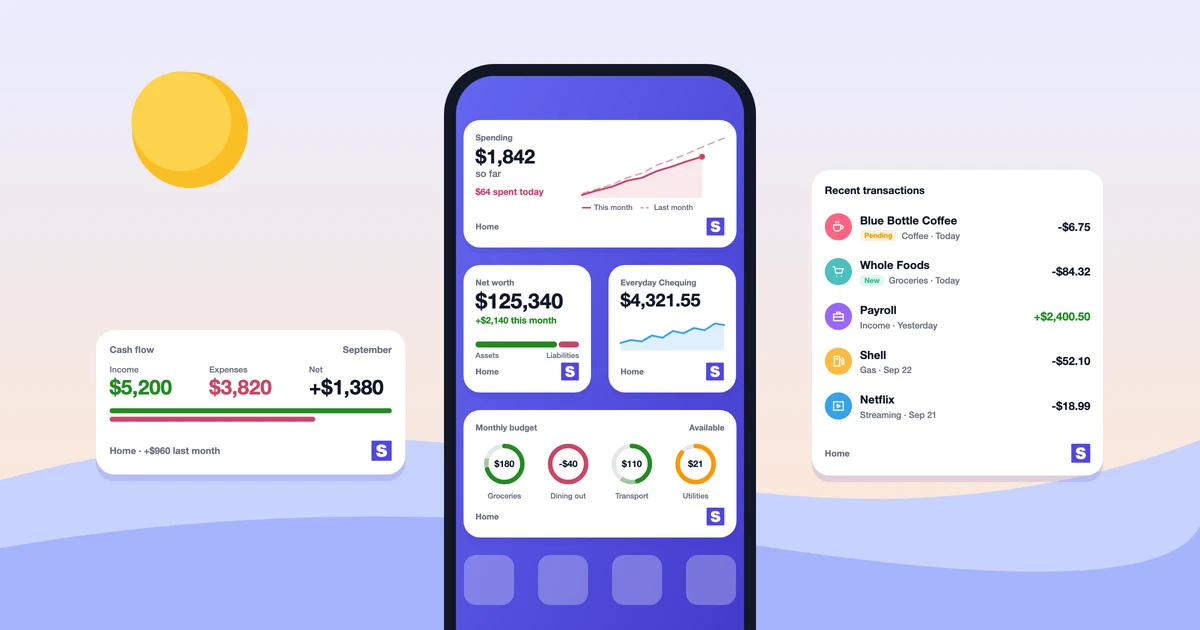
Your finances shouldn’t require opening an app every time you want a quick update. Skwad widgets put your account balances, budgets, recurring bills, and recent transactions right on your home screen, lock screen, and desktop, so a glance tells you where you stand. And they now run on Android, alongside iPhone and Mac.
It sounds small. It isn’t. Budgeting stops being a chore you sit down for on Sunday night and becomes something you just see, the way you see the time. That coffee purchase might feel different when your daily spending widget shows you’re already at 80% of your dining budget.
What are Skwad widgets?
Widgets are miniature displays that show real-time information from Skwad directly on your device’s home screen, lock screen, or Mac desktop. They update automatically through the day, so you’re always looking at current data without refreshing anything yourself. (New to them? Apple has a primer on how widgets work on iPhone, and Google covers adding widgets on Android.)
You pick what each one shows, how big it is, and where it sits. The data comes live from your Skwad account, so a change you make in Skwad shows up on the widget too.
Notifications buzz. Widgets don’t. They wait until you look, and stay out of the way when you don’t. That’s what makes a quick balance widget or a banking widget easy to live with day to day: it builds awareness without nagging you.
Widget types and sizes
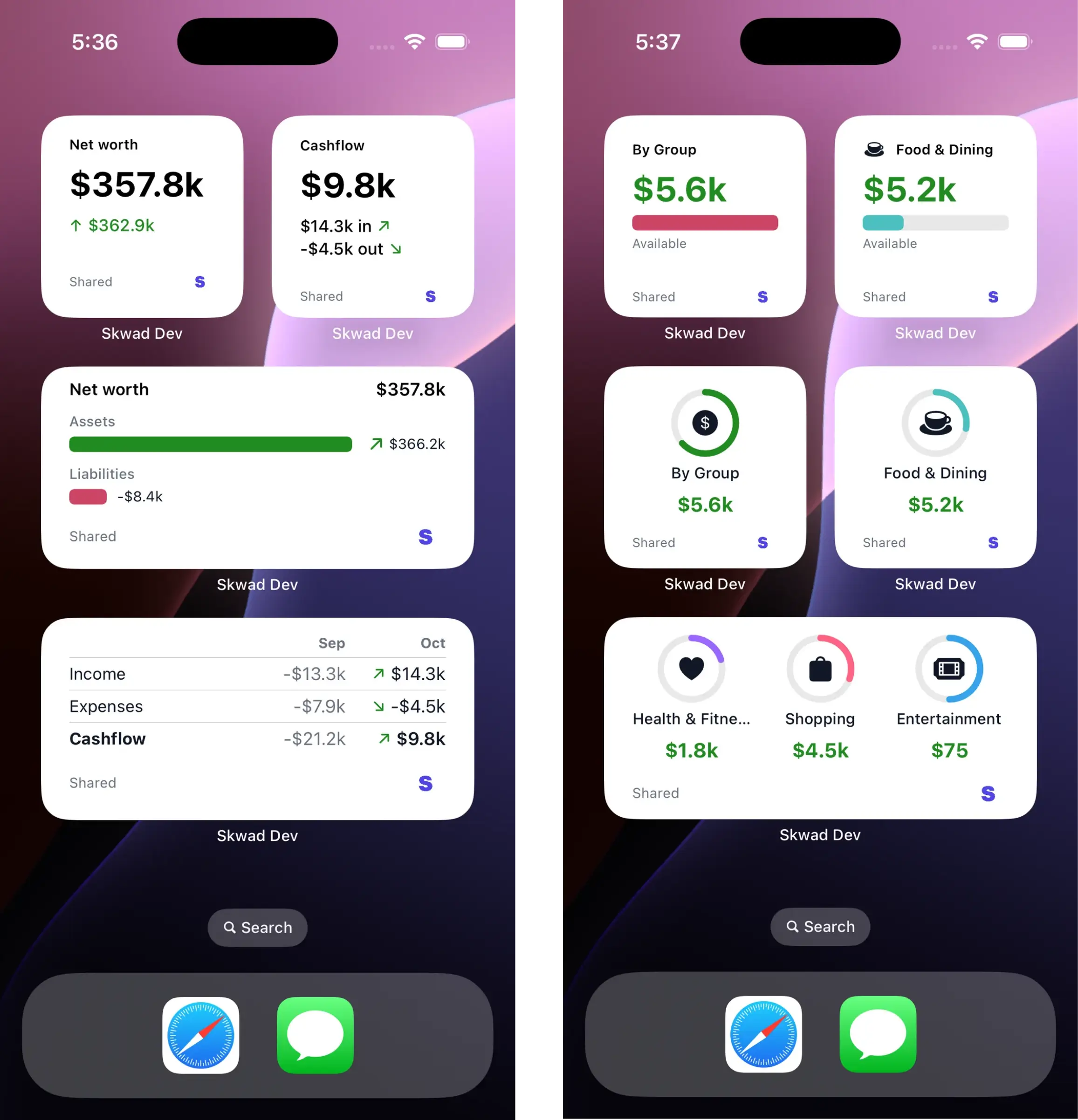
The Skwad widget collection offers several displays, each available in multiple sizes to fit your layout. Here’s the full set at a glance.
| Widget | What it shows | Sizes | Platforms |
|---|---|---|---|
| Budget | Spending against your budget, by category | Small, medium, large | iPhone, Mac |
| Account balance | Current balance for one or more accounts | Small, medium, large | iPhone, Android, Mac |
| Account balances by type | Totals grouped by account type | Small, medium, large | iPhone, Android, Mac |
| Recurring | Upcoming recurring bills and income | Small, medium, large | iPhone, Android, Mac |
| Recent transactions | Your latest transactions | Small, medium, large | iPhone, Android, Mac |
| Spending summary | Total spent over a period | Small, medium, large | iPhone, Mac |
Budget widget
The budget widget is our most popular. It shows what you’ve spent against what you budgeted, for one category or several, and the progress bars make the status obvious.
Small size: One category, with what you’ve spent and what’s left. Put the category you watch most here, whether that’s dining out, groceries, or fun money.
Medium size: A few categories, usually your top three or four, in a compact grid, so the one that needs attention stands out.
Large size: Every active category, each with its own progress bar. The whole budget, without opening Skwad.
The colors do the reading for you. Green: on track. Yellow: getting close to the limit. Red: over.
Account balance widget
The account balance widget shows current balances for your connected accounts. Whether you want a single checking account or your whole picture across several banks, this is the one people search for when they want a bank balance widget on the home screen.
Small size: One balance. You know what’s in your main checking account the moment you unlock your phone.
Medium size: Several accounts, each with its own balance. Checking, savings, and a credit card, side by side.
Large size: What you own, what you owe, and your net position underneath. The whole picture in one tile.
Balances update on their own as transactions post. With Plaid integration, that’s typically a few times a day. With email scanning, they update as you forward bank alerts.
Account balances by type
The account balances by type widget rolls your accounts up into groups: all your cash, all your savings, all your credit card debt. It’s the quickest way to answer “how much do I actually have?” without doing the math across five accounts.
The small size shows one group total, like cash on hand. Medium puts a few groups next to each other, so cash, savings, and credit sit together. Large lists every account type with its total, and your net position underneath.
Recurring widget
Recurring bills are the ones that catch you off guard, because they’re easy to forget between charges. The recurring widget shows what’s coming: upcoming bills and income, with amounts and dates. That subscription you forgot about shows up before the charge does, not after.
Small size: The next one due, with the amount and when it lands.
Medium size: The next few. Nothing sneaks up on you this week.
Large size: The whole upcoming schedule, income and bills together.
Pair it with the recurring bills dashboard when you want the full picture, beyond what’s next.
Recent transactions widget
The recent transactions widget shows what just hit your accounts. It’s the quickest way to spot a charge you didn’t expect.
Small size: Your latest transaction, with the amount and merchant. Did that coffee go through right? Now you know.
Medium size: The last three to five, with the basics. Surprises show up early, without opening the full list.
Large size: A longer feed with categories and full merchant names, right on your home screen.
This one earns its keep the day you see a charge you don’t recognize. You can look into it right then instead of finding it a week later during your review.
Spending summary widget
The spending summary widget adds up what you’ve spent over a period, usually the current month or week. Where the budget widget compares spending to a plan, this one simply shows the total.
It also breaks spending down by category, so you can see where the money went without opening reports. It’s the fastest answer to “how much have I spent this month?” or “what did I spend on food this week?”
Works with any bank
Your bank probably doesn’t put your balance on your home screen. Skwad does, for any bank you can connect.
Balances come from your linked accounts, so it doesn’t matter who you bank with. Chase, Bank of America, Wells Fargo, TD, Regions, a local credit union, a card you only use for gas: if it’s connected to Skwad through Plaid or email scanning, it shows up in the account balance widget the same way. One widget covers every account instead of one banking app per bank.
Setting up widgets on iPhone
Under a minute, start to finish:
- Long-press an empty spot on your home screen until the apps jiggle.
- Tap the plus button in the top corner.
- Search the widget gallery for Skwad.
- Pick a widget type and a size.
- Tap Add Widget.
- Drag it where you want it.
- Tap Done, and your layout’s saved.
Then point it at the right numbers. Long-press the widget, pick Edit Widget, and choose the categories, accounts, or other options. What you can set depends on the widget.
Lock screen widgets
Want the number before you even unlock? iOS puts widgets on the lock screen too. They’re smaller and simpler than the home screen kind: one figure, like what’s left in your budget or your main account balance.
Setting one up is quick:
- Long-press your lock screen.
- Hit Customize.
- Choose the lock screen panel, not the home screen one.
- Tap the row of widget slots under the time.
- Find Skwad in the gallery and add the one you want.
- Tap Done.
They update in real time, so your balance is the first thing you see when you pick up your phone.
Setting up widgets on Android
We brought the widgets to Android so your finances travel with your phone, whichever one you carry.
Android widgets live in your launcher’s widget picker. Every phone labels things a little differently, but the flow holds:
- Long-press an empty spot on your home screen.
- Tap Widgets.
- Scroll to Skwad, or search for it.
- Press and hold the widget you want and drag it onto the screen.
- Let go where you want it. Resize it if your launcher lets you.
- Tap it to pick the account, category, or budget it shows.
On Android you get the account balance, account balances by type, recurring, and recent transactions widgets, in the same small, medium, and large sizes.
Setting up widgets on Mac
Mac widgets appear in Notification Center and can be pinned to your desktop for always-visible information, the same way you’d add and customize any widget on Mac.
- Click the time in your menu bar, and Notification Center slides open.
- Scroll all the way down and click Edit Widgets.
- Find Skwad in the list.
- Drag a widget into Notification Center, or straight onto the desktop.
- Right-click each widget to set what it shows.
On the desktop, a widget can go anywhere. A corner works well: you can see it, and it stays out of your work.
Desktop widget best practices
Before you pin one down, ask yourself:
- Will the windows you keep open cover it?
- Are the money widgets together? One spot beats three
- Does the size suit your screen resolution?
- Who else can see this screen? They’ll see your widgets too
If that last one bothers you, Notification Center may be the better home. Those widgets stay hidden until you open it.
Widget privacy considerations
It’s your money on the screen, so it’s fair to ask who else can see it. Here’s how we handle that.
What widgets display
Skwad widgets show summary information, not detailed transaction histories or full account numbers. You might see “Chase Checking: $2,341” but not your account number or a running history.
When others might see your screen
Think about who’s near your screens during the day. In public, home screen widgets show whenever you unlock your phone. Lock screen widgets show without any authentication. Desktop widgets show to anyone near your computer.
Worried about that? You’ve got options:
- On a Mac, keep them in Notification Center instead of on the desktop
- Leave money off the lock screen
- Move home screen widgets to a second page
- Go small. Smaller sizes show less detail
Secure display options
One trick: make a “financial dashboard” home screen page and only visit it when you’re alone. The numbers stay handy without always being in view. Widget stacks help too. Swipe through several widgets in the same spot, so the money one isn’t always on top.
Optimizing your widget layout
There’s no single right layout. It comes down to which numbers actually change what you do.
For budget-focused users
Trying to stay on budget? Lead with budget widgets:
- A large budget widget showing all categories
- A small widget for your most troublesome category
- The recent transactions widget to catch unplanned purchases
You see the limit before you tap your card, not after.
For balance watchers
Watch your balance more than your budget? Try:
- A medium account balance widget for your main accounts
- A small spending summary for context
- The recent transactions widget for activity awareness
Handy if you’re keeping checking above a floor, or dodging an overdraft fee.
For minimal awareness
Maybe a number staring at you all day just makes you anxious. Fair. Try this:
- A single small widget showing overall status
- No lock screen widgets
- Financial widgets on a secondary home screen page
The numbers are there when you go looking. Otherwise, quiet.
Troubleshooting widget issues
Widgets misbehave sometimes. Here’s what usually fixes them.
Widget shows “Unable to load”
Usually the widget just couldn’t reach our servers. Check that you’re online and try again. Still stuck? Remove the widget and add it back. That often clears it.
Data seems outdated
Widgets refresh automatically, but how often depends on your phone’s background refresh settings. On iPhone, make sure Skwad has background refresh on in Settings > General > Background App Refresh. On Android, allow Skwad to run in the background so widgets can update.
Widget disappeared after an update
Once in a while, an update means a widget needs setting up again. If one vanishes or stops working after you update Skwad, remove it and add it again.
Can’t find Skwad in the widget picker
Make sure you’re on the latest version. Widgets need a recent version of Skwad, so check the App Store or Google Play if it’s missing from your widget picker.
The psychology of financial widgets
Seeing a number every day changes how you act on it. Put your finances in your line of sight and you get small nudges toward better choices, all day long.
When your dining budget is nearly gone, you might reconsider that restaurant meal. When your recent transactions widget shows a stack of subscription charges, you might finally cancel the one you never use. When your balance widget shows your emergency fund growing, you keep saving.
Nobody here wants you refreshing your balance like a stock ticker, and guilt isn’t the goal. Checking your budget should feel like checking the weather. Two seconds, then back to your day.
Beyond widgets: the Skwad ecosystem
Widgets are one piece. The rest of Skwad is built to take busywork off your plate too.
Transactions arrive already sorted. That’s Automated categorization at work. Something you fix by hand every month? Rules and automations take it off your list. The recurring bills dashboard tracks what’s coming and what it costs. Cashflow reports are there when you want to dig in.
Widgets sit on top of all that. Your numbers stay current and a glance away, so they don’t catch you off guard.
Frequently asked questions
Does Skwad have an Android widget?
Yes. The account balance, account balances by type, recurring, and recent transactions widgets all run on Android. Long-press your home screen, tap Widgets, find Skwad, then drag the size you want onto the screen.
How do I add a Skwad widget to my iPhone?
Long-press your home screen until the apps jiggle, tap the plus button in the top corner, search for Skwad in the widget gallery, choose your widget type and size, then tap Add Widget and position it.
Can I see my bank balance on a widget?
Yes. The account balance widget shows current balances for the accounts you’ve connected, whether that’s checking, savings, or a credit card. Pick one account or watch several at once.
Which banks work with the balance widget?
Any bank you can connect to Skwad. Balances come from your linked accounts through Plaid or email scanning, so Chase, Bank of America, Wells Fargo, TD, and thousands of others show up the same way.
What does the recurring widget show?
Your upcoming recurring bills and income, with amounts and dates, so you know what’s about to hit before it does.
Why is my widget showing outdated data?
Widgets refresh automatically, but the frequency depends on your phone’s background refresh settings. On iPhone, make sure Skwad has background refresh enabled in Settings > General > Background App Refresh.
Can other people see my finances on my widgets?
Widgets show summary information, not full account numbers or detailed histories. If privacy is a concern, use Notification Center widgets on Mac, skip lock screen financial widgets, and place home screen widgets on a secondary page.
Getting started
Already using Skwad? Update your app on iPhone or Android, and the widgets show up in your device’s widget picker. New to Skwad? Start a free trial and see how a glance at your finances changes the way you spend.
You shouldn’t find out your balance at the checkout. Put it where you’ll see it first.