
To get your bank’s transaction emails into Skwad from iCloud Mail, set up a forwarding rule in the Mac Mail app that sends matching alerts to your Skwad Scan address. Skwad parses each one and files it as a categorized transaction, so you skip the manual data entry.
Here’s how to set up those rules. Match your bank’s emails by sender or subject, and you can automatically sync payment confirmations, income notifications, and expense receipts into Skwad’s transaction feed.
This guide is for setting up iCloud Mail. Looking for a different email client?
- How to forward transactions from Proton Mail to Skwad
- How to forward transactions from Gmail to Skwad
Here’s how to get started:
1. Create your Skwad account
Sign up for Skwad to receive your personalized Skwad scan email address, such as “[email protected].” This is your dedicated inbox for syncing various financial notifications.
2. Set up email forwarding rules in iCloud Mail
Next, create email forwarding rules in your iCloud Mail inbox to automatically send key financial alerts to your Skwad Scan address:
• The first rule you should set up is for transaction / spend alerts from your bank.
• You can also set up rules for deposits, atm withdrawals, balance changes, and more!
To do this in iCloud Mail:
- Open the Mail app on your Mac
- Go to Mail > Preferences (or Mail > Settings in newer versions)

- Click on the “Rules” tab
- Click “Add Rule”

- Give your rule a name (e.g., “Forward Financial Emails to Skwad”)
- Set up your criteria (e.g., From, Subject contains, etc.)
- Under “Perform the following actions”, select “Forward to”
- Enter your Skwad Scan address in the forwarding field You can setup forwarding rules by the subject or sender.
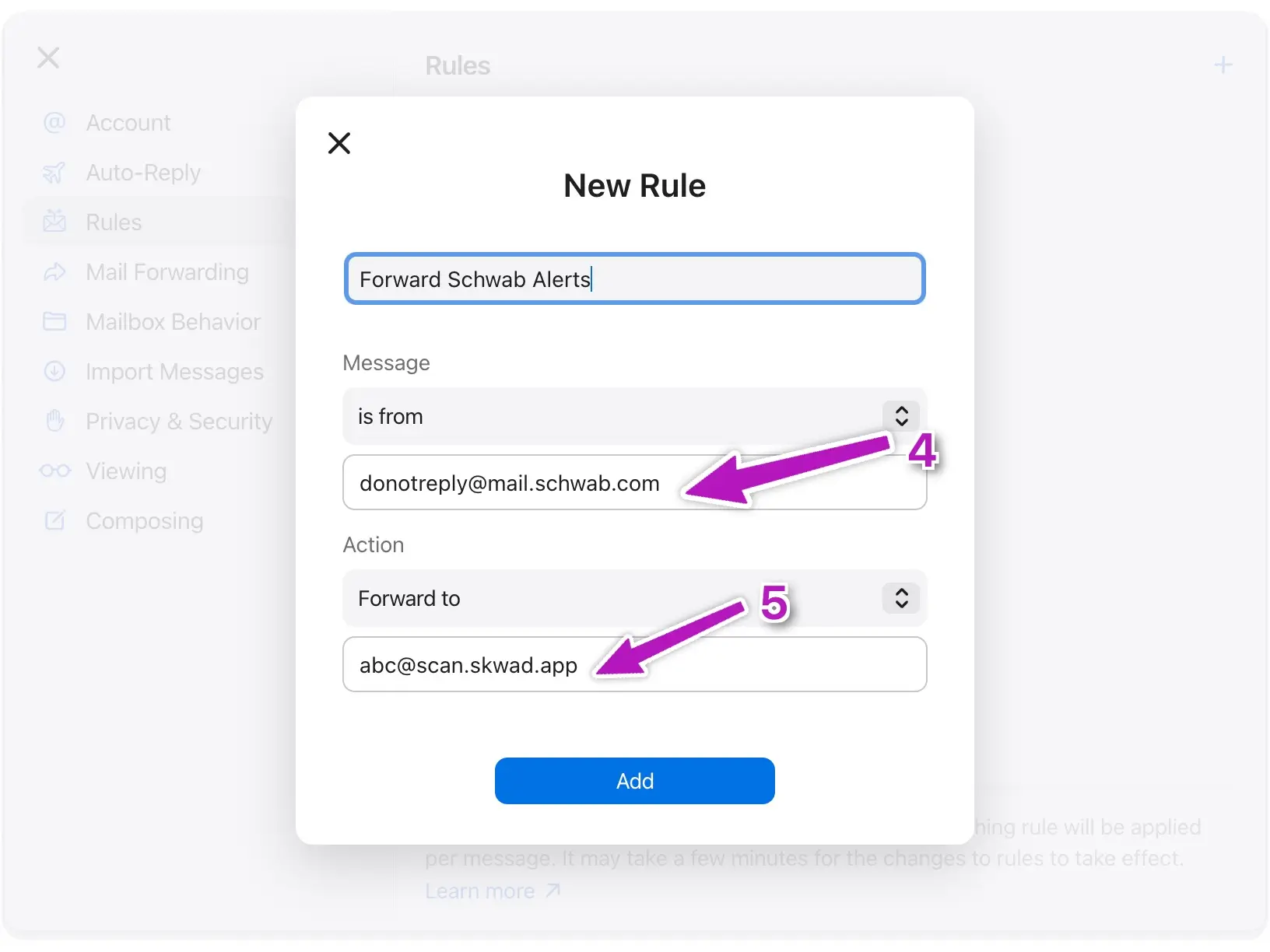
Replace [email protected] with your own Skwad scan address
- Click “OK” to save the rule
Remember to create separate rules for different types of financial emails if needed. You can also set up these rules on your iOS device by going to Settings > iCloud > Mail > iCloud Mail Rules.
3. Repeat
Repeat the steps above for each of your financial institutions / alerts.
4. Skwad does the rest
Once you’ve set up the forwarding, Skwad’s parsing engine starts working. It automatically reads the forwarded emails in your Skwad Scan inboxes, extracts all the critical transaction details like amount, merchant, and date, and categorizes them within your Skwad account.
Just like that, your finances are tracked and organized without manual data entry. You can then access your transaction history and spending analytics in the Skwad app, or sync to Google Sheets.
Forwarding is just one way to feed Skwad. You can also point your bank’s notifications straight at your Skwad Scan address, and either way you get spend tracking without linking your bank.
Frequently asked questions
Can I set up iCloud Mail forwarding rules without a Mac?
You can manage iCloud Mail rules on your iOS device under Settings > iCloud > Mail > iCloud Mail Rules. The Mac Mail app gives you the most options, but the rules sync across your devices.
How many rules do I need?
Create a separate rule for each bank or alert type you want to capture. Start with your bank’s transaction alerts, then add rules for deposits, ATM withdrawals, or balance changes as needed.
Does Skwad need my bank login?
No. Forwarding works entirely through email, so Skwad never sees your bank credentials. You get hands-off tracking without linking your bank.