Home-screen widgets
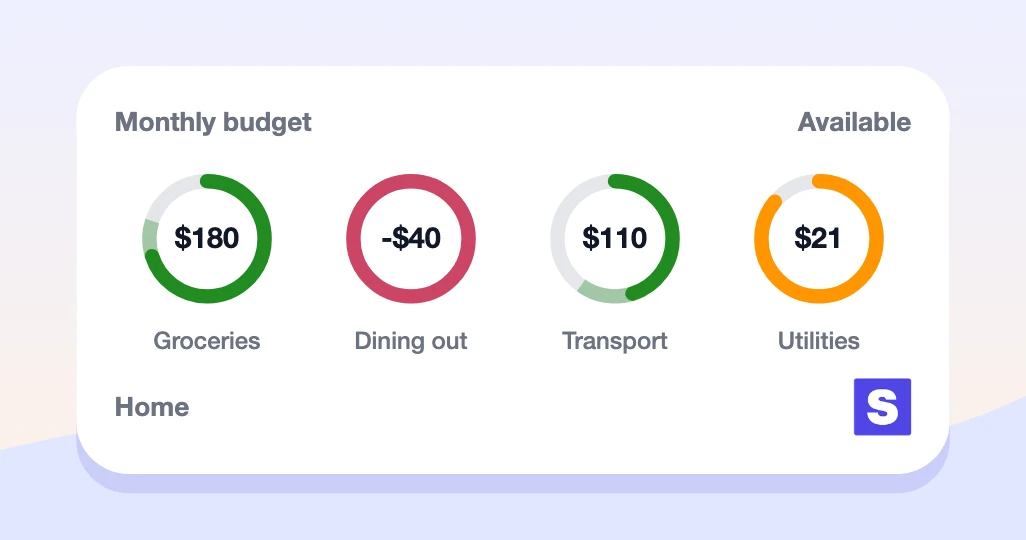
Skwad widgets keep your numbers on your phone's home screen, so a balance, this month's spending, or a charge you don't recognize is there at a glance. They work on iPhone and Android.
Adding a widget
- Long-press an empty spot on your home screen.
- Open the widget gallery (+ on iPhone, Widgets on Android) and search for Skwad.
- Pick a widget and a size, then place it.
- Choose what it shows. On iPhone, long-press the widget and tap Edit Widget. On Android, the setup screen opens as soon as you add it.
Tap any widget to jump straight to that screen in Skwad.
Available widgets
| Widget | Sizes | What it shows |
|---|---|---|
| Account balance | Small, medium | One account's balance. The small size can show a 30-day line. The medium adds this month's change, money in and out, and a chart. |
| Account group | Small, large | The total for a group of accounts, an account type, or all of them. The large size adds a 30-day chart and up to four accounts with their change this month. |
| Latest transactions | Large | Your Skwad's most recent transactions. |
| Spending | Medium | This month's spending against last month, day by day. |
| Net worth | Small, medium | Net worth for one Skwad. |
| Cashflow | Small, medium | Income against expenses for the period. |
| Budget | Small, medium | Your default budget, or the categories you choose. |
For credit cards and loans, charts plot what you owe.
Keeping widgets up to date
Widgets refresh on their own when your data changes, like when a new transaction syncs. They also refresh while Skwad is open and on a regular schedule in the background.
If a widget shows a message like "Connect an account in Skwad", the account it was showing is gone or there's nothing to show yet. Edit the widget and pick again.
FAQ
How quickly do widgets update after a new transaction?
Usually within a few minutes. When a transaction lands, we wait a couple of minutes for anything else to sync alongside it, then send one update to your phone.
How do I get the fastest updates?
Leave Skwad running in the background. Switching to another app is fine, but swiping Skwad away in the app switcher stops iPhone from delivering widget updates until you open Skwad again. While Skwad is open, widgets update right alongside it, so a quick visit brings them up to date.
My widget looks out of date. What can I check?
- Open Skwad once. That refreshes every widget straight away.
- On iPhone, make sure Background App Refresh is on for Skwad (Settings > General > Background App Refresh). Low Power Mode also pauses background updates until it's off.
- On Android, make sure Skwad's battery setting isn't Restricted (Settings > Apps > Skwad > Battery).
Need help?
Widget not updating? Email us and we're happy to help.