Multi-Currency Support
Skwad supports three types of currencies:
Default currency: this is the currency for your Skwad account. It is used for all calculation and display purposes.
Account currency: each account can have a different currency. For example, you can connect both a USD and CAD bank to Skwad.
Transaction currency: this can be different from both the default currency and account currency.
Currency conversion is OFF by default for all accounts due to its complexity. Once on, Skwad gives you the option of using the app conversion rate or entering your own custom rate.
Turning on multi-currency
Step 1: Set your default currency
- Navigate to Skwad preferences:
- On web: Profile icon > Skwads & Connections > Skwad preferences
- On mobile: More > Skwads & Connections > Skwad preferences
- Find the Currency dropdown and select your default currency. This is the currency used for all calculations and display across the app.
- Toggle on Currency conversion. This requires a DIY or LINK plan.
- Confirm in the modal that appears. You can read more about how multi-currency works from the link in the confirmation dialog.
Only Skwad captains can change the default currency and enable currency conversion.
How rates work
Skwad will use the best available rate within a 15 minute window for your transactions, and multiple transactions may share the same rate if they fall within the same window.
Simply edit the app rate to use your own custom rate. Skwad will also automatically pull in rates from OFX & QFX file uploads if your bank provides them. You can also include conversion rates in CSV and Excel uploads by adding TOCURRENCY and CONVERSIONRATE columns — see uploading transactions for details.
Managing Rates
Rates are only available on Desktop web.
Typing in a rate for every foreign transaction gets old fast. If you've connected Skwad to Claude, ChatGPT, or Cursor, hand it the job: "Add a EUR to CAD rate for every transaction from my Spain trip in June." It reads the transactions, looks up the rates, writes one per transaction, and the rows show up on the rates tab where you can check or delete them.
Adding new rates
-
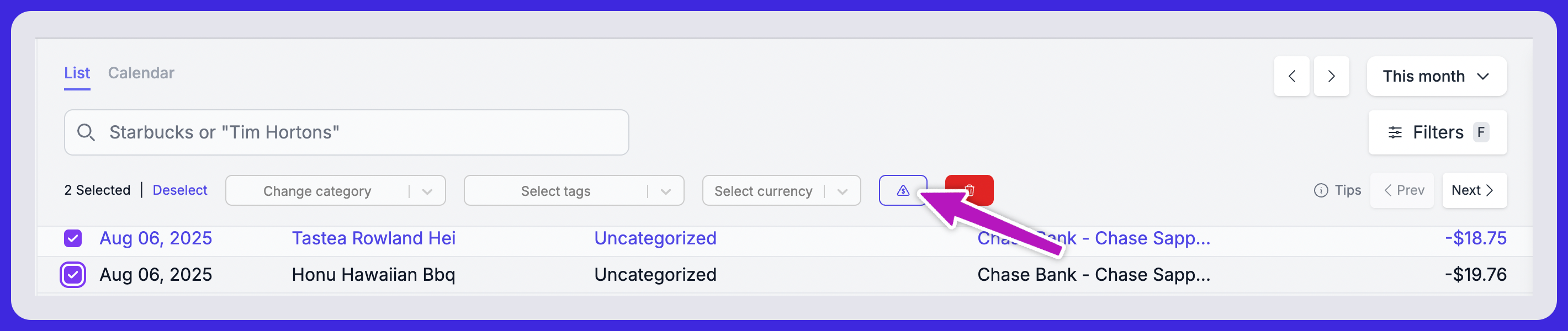
Head over to the transactions page to add new rates.
-
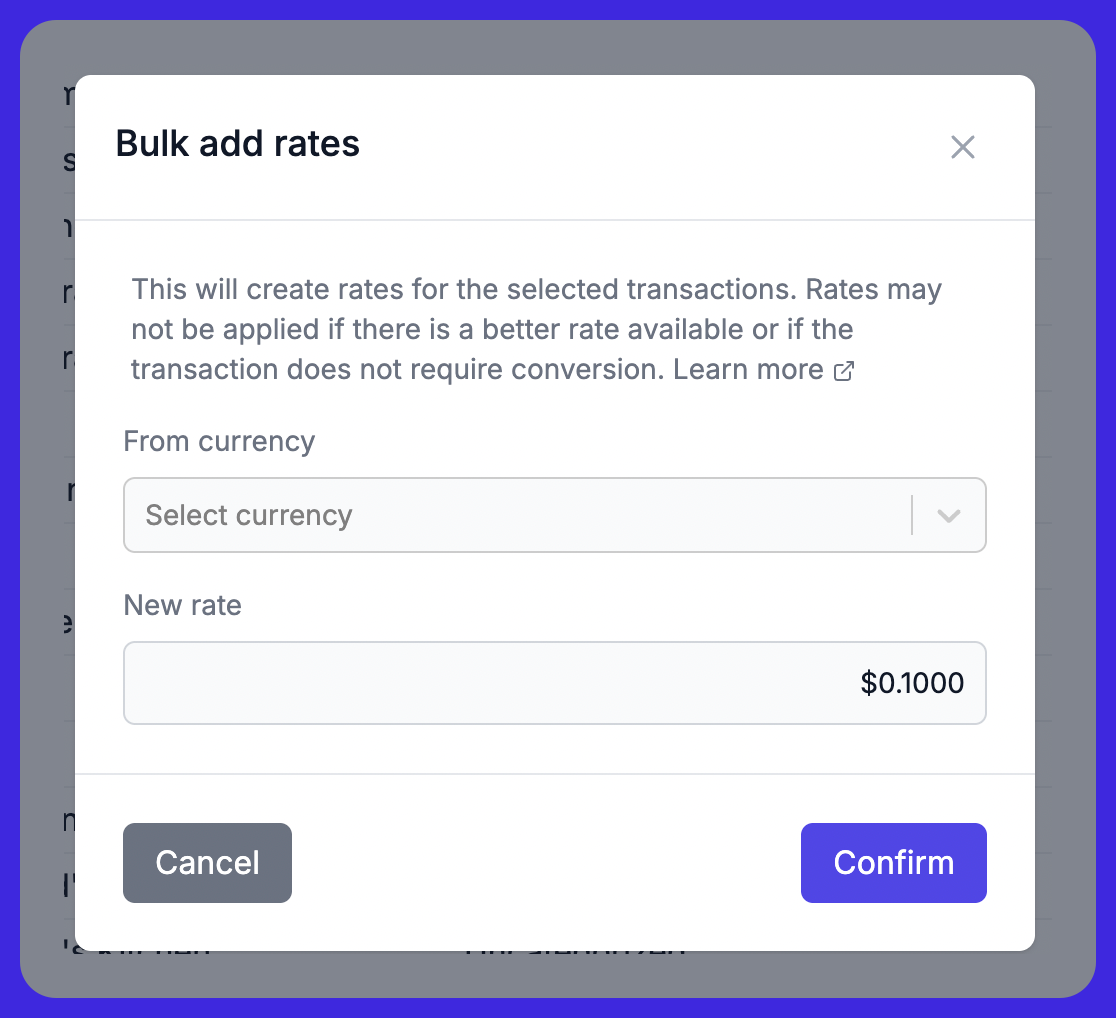
Select a few transactions and click on the rates button to update rates in bulk.
Editing existing rates
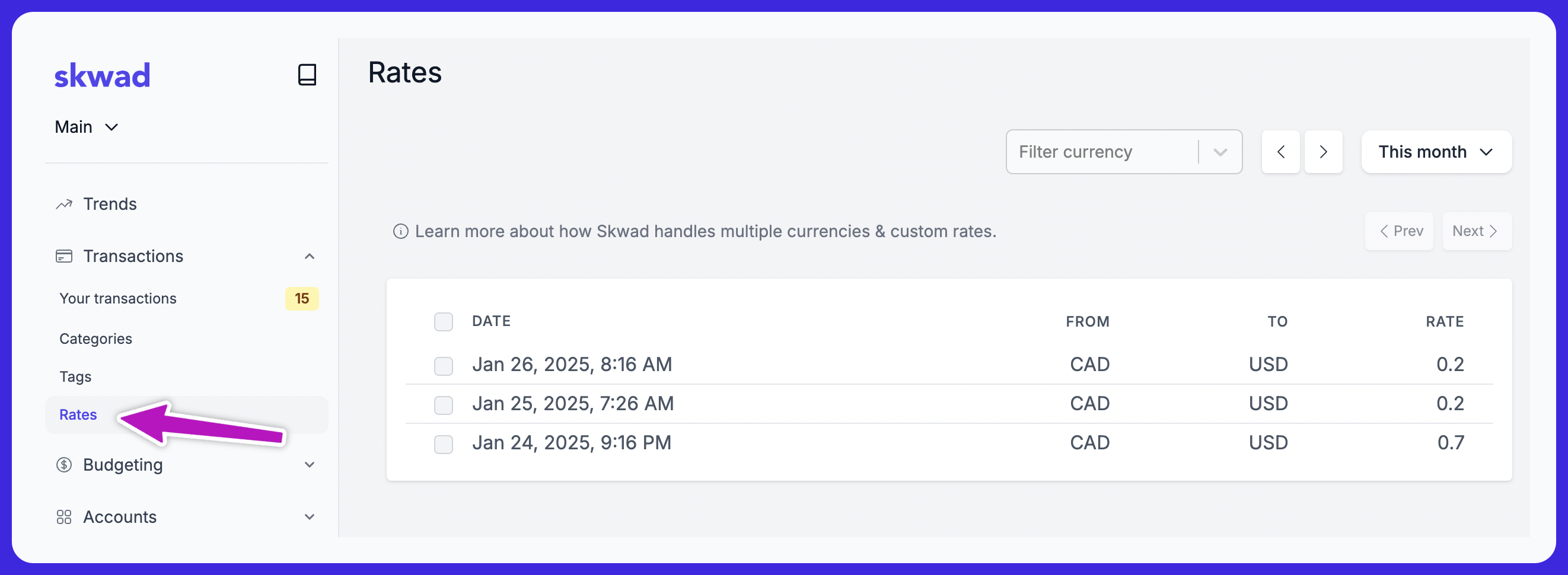
A new rates tab will show up after activating multi-currency conversion. Use it to edit existing rates.
Viewing Rates
After enabling rates, you can view the original amount by activating the original amount column.
